Cambridge Spiral installation and basic functions
The Cambridge Spiral App
The Cambridge Spiral app will enable you to read online and offline, on campus and off campus. Mobile and tablet versions of the app are available to download from Apple’s App Store and Google Play. Desktop versions are also available to download for Windows and Mac.
Get an overview of the Cambridge Spiral app here. If you have further questions please refer to our Cambridge Spiral FAQ.
When you install the app for the first time, this may take several minutes to complete.
When you first open the Spiral app after installation, you will be prompted to create a Spiral account using your Cambridge Aspire/Cambridge Core login credentials. If you need to create a Cambridge Aspire/Cambridge Core account, please refer to the Register and Login page.
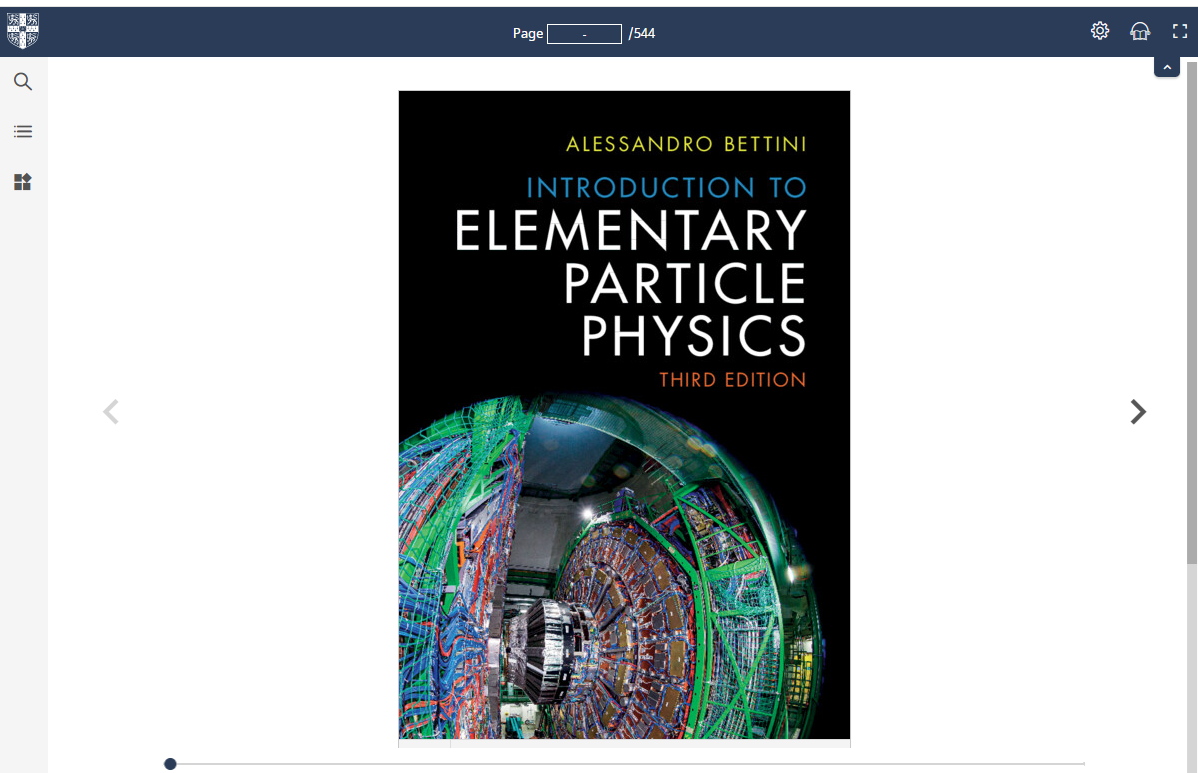
The Cambridge Spiral app will enable you to read online and offline, on campus and off campus. Mobile and tablet versions of the app are available to download from Apple’s App Store and Google Play. Desktop versions are also available to download for Windows and Mac.
Get an overview of the Cambridge Spiral app here. If you have further questions please refer to our Cambridge Spiral FAQ.
When you install the app for the first time, this may take several minutes to complete.
When you first open the Spiral app after installation, you will be prompted to create a Spiral account using your Cambridge Aspire/Cambridge Core login credentials. If you need to create a Cambridge Aspire/Cambridge Core account, please refer to the Register and Login page.
Cambridge Spiral mobile applications
Mobile and tablet versions of the Cambridge Spiral app are available to download from Apple’s App Store and Google Play. Cambridge Spiral supports the last 3 versions of Android and IOS operating systems.
Cambridge Spiral for Google Play Store
A link for the Google Play Store version of Cambridge Spiral eReader version of Cambridge Spiral eReader for viewing Higher Education from Cambridge University Press Textbooks
Learn moreCambridge Spiral for Google Play Store
A link for the Google Play Store version of Cambridge Spiral eReader version of Cambridge Spiral eReader for viewing Higher Education from Cambridge University Press Textbooks
Learn moreCambridge Spiral for iOS (Apple iPhone and iPad)
A link for the Apple App Store version of Cambridge Spiral eReader version of Cambridge Spiral eReader for viewing Higher Education from Cambridge University Press Textbooks
Learn moreCambridge Spiral for iOS (Apple iPhone and iPad)
A link for the Apple App Store version of Cambridge Spiral eReader version of Cambridge Spiral eReader for viewing Higher Education from Cambridge University Press Textbooks
Learn moreCambridge Spiral for Google Play Store
A link for the Google Play Store version of Cambridge Spiral eReader version of Cambridge Spiral eReader for viewing Higher Education from Cambridge University Press Textbooks
Learn moreCambridge Spiral for Google Play Store
A link for the Google Play Store version of Cambridge Spiral eReader version of Cambridge Spiral eReader for viewing Higher Education from Cambridge University Press Textbooks
Learn moreCambridge Spiral for iOS (Apple iPhone and iPad)
A link for the Apple App Store version of Cambridge Spiral eReader version of Cambridge Spiral eReader for viewing Higher Education from Cambridge University Press Textbooks
Learn moreCambridge Spiral for iOS (Apple iPhone and iPad)
A link for the Apple App Store version of Cambridge Spiral eReader version of Cambridge Spiral eReader for viewing Higher Education from Cambridge University Press Textbooks
Learn moreCambridge Spiral desktop applications
You can use Cambridge Spiral in your web browser, or download a Desktop version of the app for Windows or Mac. Cambridge Spiral supports Windows 10/11 and the last 3 versions of MacOS.
Cambridge Spiral for MAC
A download link for the MAC desktop version of Cambridge Spiral eReader for viewing Higher Education from Cambridge University Press Textbooks
Learn moreCambridge Spiral for MAC
A download link for the MAC desktop version of Cambridge Spiral eReader for viewing Higher Education from Cambridge University Press Textbooks
Learn moreCambridge Spiral for Windows
A download link for the Windows desktop version of Cambridge Spiral eReader for viewing Higher Education from Cambridge University Press Textbooks
Learn moreCambridge Spiral for Windows
A download link for the Windows desktop version of Cambridge Spiral eReader for viewing Higher Education from Cambridge University Press Textbooks
Learn moreCambridge Spiral for MAC
A download link for the MAC desktop version of Cambridge Spiral eReader for viewing Higher Education from Cambridge University Press Textbooks
Learn moreCambridge Spiral for MAC
A download link for the MAC desktop version of Cambridge Spiral eReader for viewing Higher Education from Cambridge University Press Textbooks
Learn moreCambridge Spiral for Windows
A download link for the Windows desktop version of Cambridge Spiral eReader for viewing Higher Education from Cambridge University Press Textbooks
Learn moreCambridge Spiral for Windows
A download link for the Windows desktop version of Cambridge Spiral eReader for viewing Higher Education from Cambridge University Press Textbooks
Learn moreOffline and Online reading
The Cambridge Spiral app allows online and offline reading. When you open the app, you will see your bookshelf, with titles you have recently read. You can choose to make titles available for offline reading by clicking on the grey offline icon in the centre of the cover.
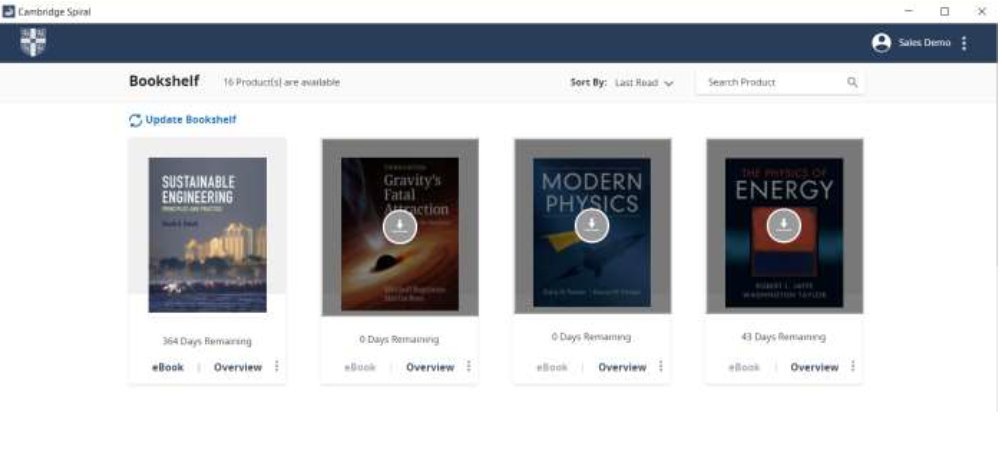
The Cambridge Spiral app allows online and offline reading. When you open the app, you will see your bookshelf, with titles you have recently read. You can choose to make titles available for offline reading by clicking on the grey offline icon in the centre of the cover.
Adding books to your offline bookshelf
You may have up to 20 books in your offline bookshelf at the same time. To add a book to your offline bookshelf, navigate to the landing page of the textbook on the Cambridge Aspire website.
Click the button Add to offline bookshelf.
Once you have added the book, you will be able to read it online and offline, on and off campus, within the Spiral app. Please note that you need install the Spiral app on your chosen reading device to use this feature.
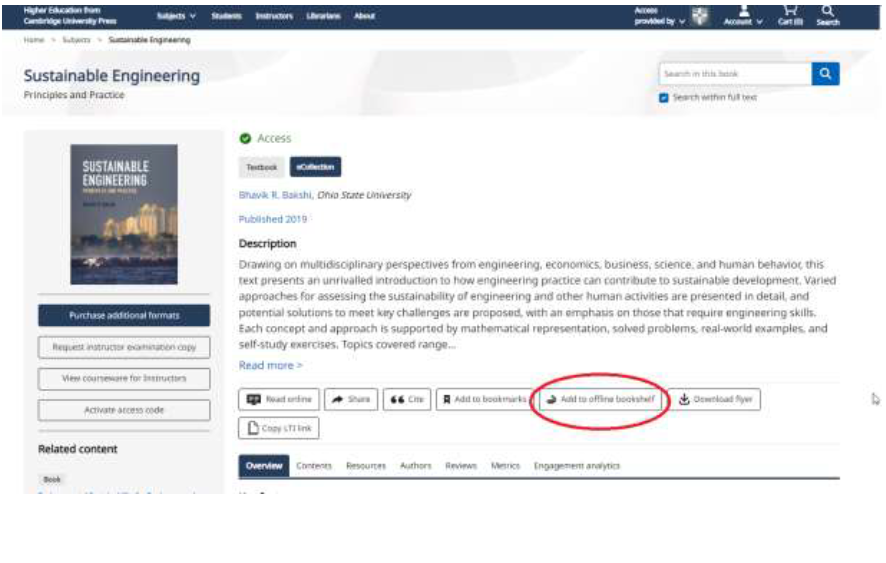
You may have up to 20 books in your offline bookshelf at the same time. To add a book to your offline bookshelf, navigate to the landing page of the textbook on the Cambridge Aspire website.
Click the button Add to offline bookshelf.
Once you have added the book, you will be able to read it online and offline, on and off campus, within the Spiral app. Please note that you need install the Spiral app on your chosen reading device to use this feature.
Sync functionality
When reading offline, the “sync” button can be used to ensure that any annotations that you add
while reading offline will be synced to your account once you are back online.
Next section: More Spiral Features
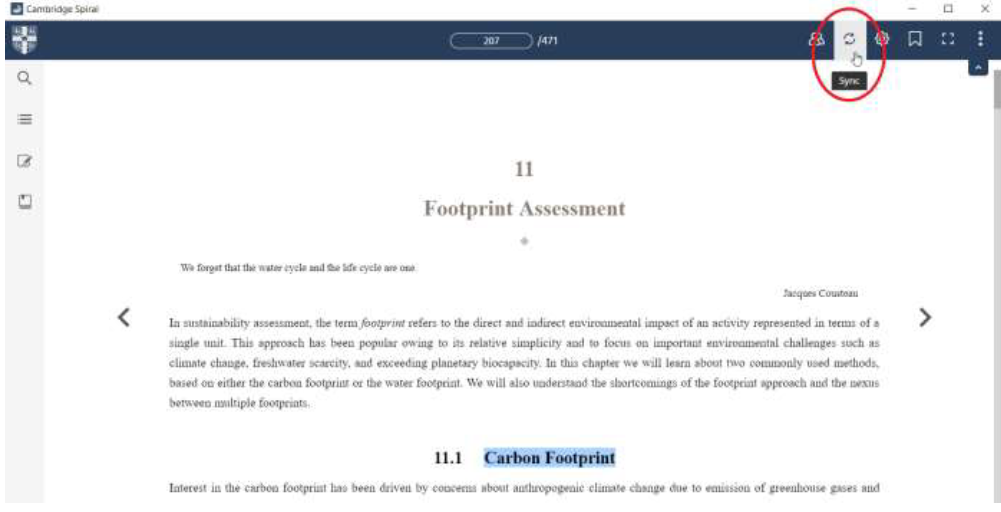
When reading offline, the “sync” button can be used to ensure that any annotations that you add
while reading offline will be synced to your account once you are back online.
Next section: More Spiral Features